Getting started with Apple TV: How to set up Apple TV for the best experience – AppleTV 4 Jailbreak (appletv4jailbreak.com)
Have you just got an Apple TV? The Apple TV HD or Apple TV 4K bring a collection of multimedia experiences to your television, from video apps to photos to games, but there are a few settings you might want to change in order to get the most out of your new set-top box.
Read on for five top tips for the best Apple TV experience …
Recommended Apple TV accessories:
Here’s five top tips to get the most out of your Apple TV:
Best Apple TV video settings
Each TV set will have a slightly different video configuration. You will want to calibrate the TV itself, but the Apple TV also has its own settings, that you will probably need to customise to get the best experience.
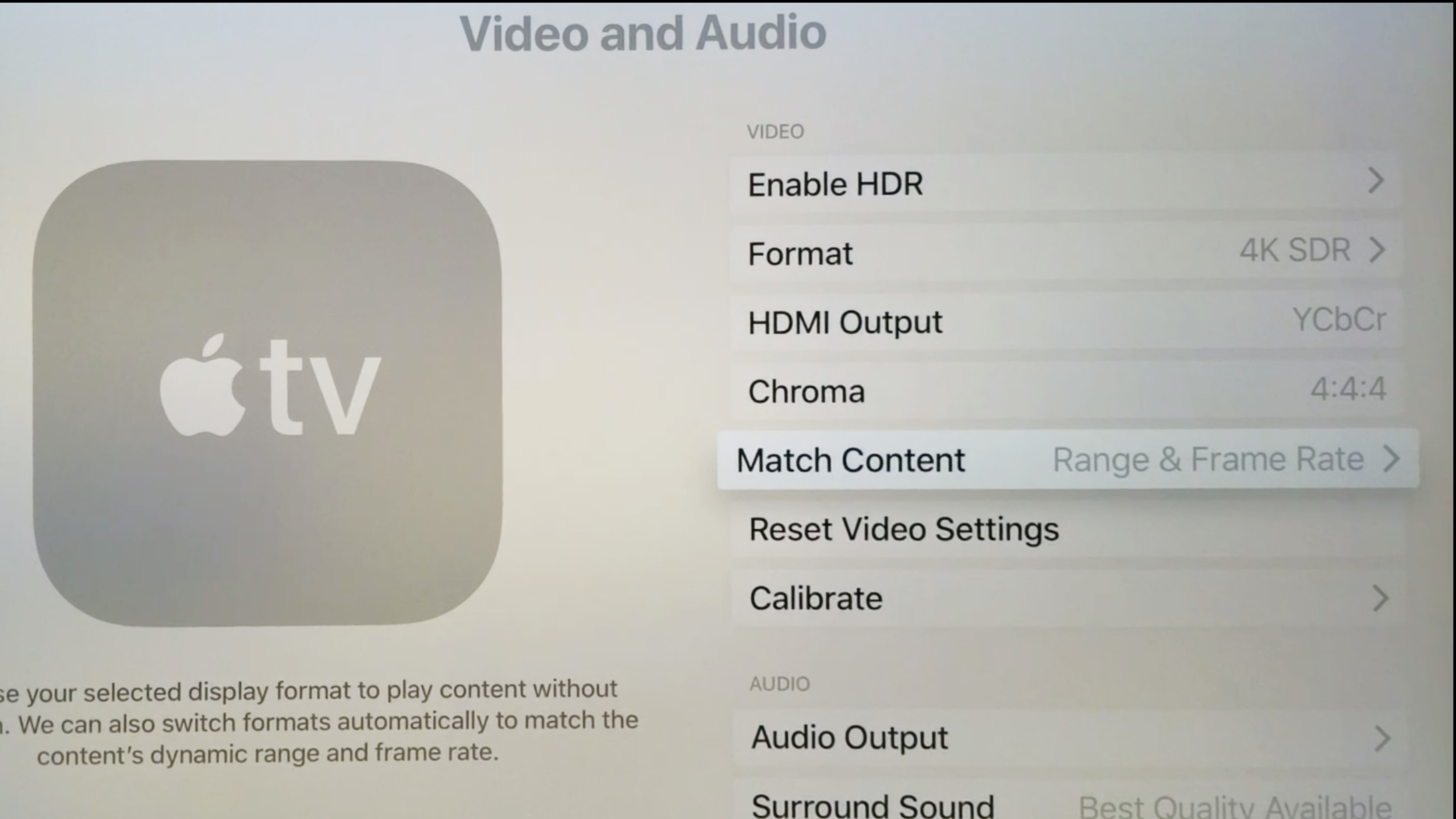
Go into the Settings app, select ‘Video and Audio’. If you have an Apple TV 4K, the video output format may be set to 4K HDR by default. On the surface , this seems like the best quality option. However, this means all content is rendered by the Apple TV in HDR, even the content that isn’t available in high-dynamic range including things like most application interfaces.
For the best video experience across the system, change the video output format to 4K SDR. Then, enable ‘Dynamic range matching’ and ‘Frame rate matching’. With these options enabled, the Apple TV will spend most of its time outputting in a 4K SDR format. However, when it encounters high dynamic range video content, it will switch into the appropriate 4K HDR mode. When you finish watching the video, it returns to 4K SDR. You may see a visible ‘switch’ from the TV itself.
For some older TVs, this format switching can be intensive and takes a long time such that it is an annoyance. If this is the case, then disabling automatic matching and leaving the Apple TV on the permanent 4K HDR mode may be preferred. Assuming your TV set is relatively recent however, the best recommendation is to set the Apple TV to 4K SDR with dynamic matching.
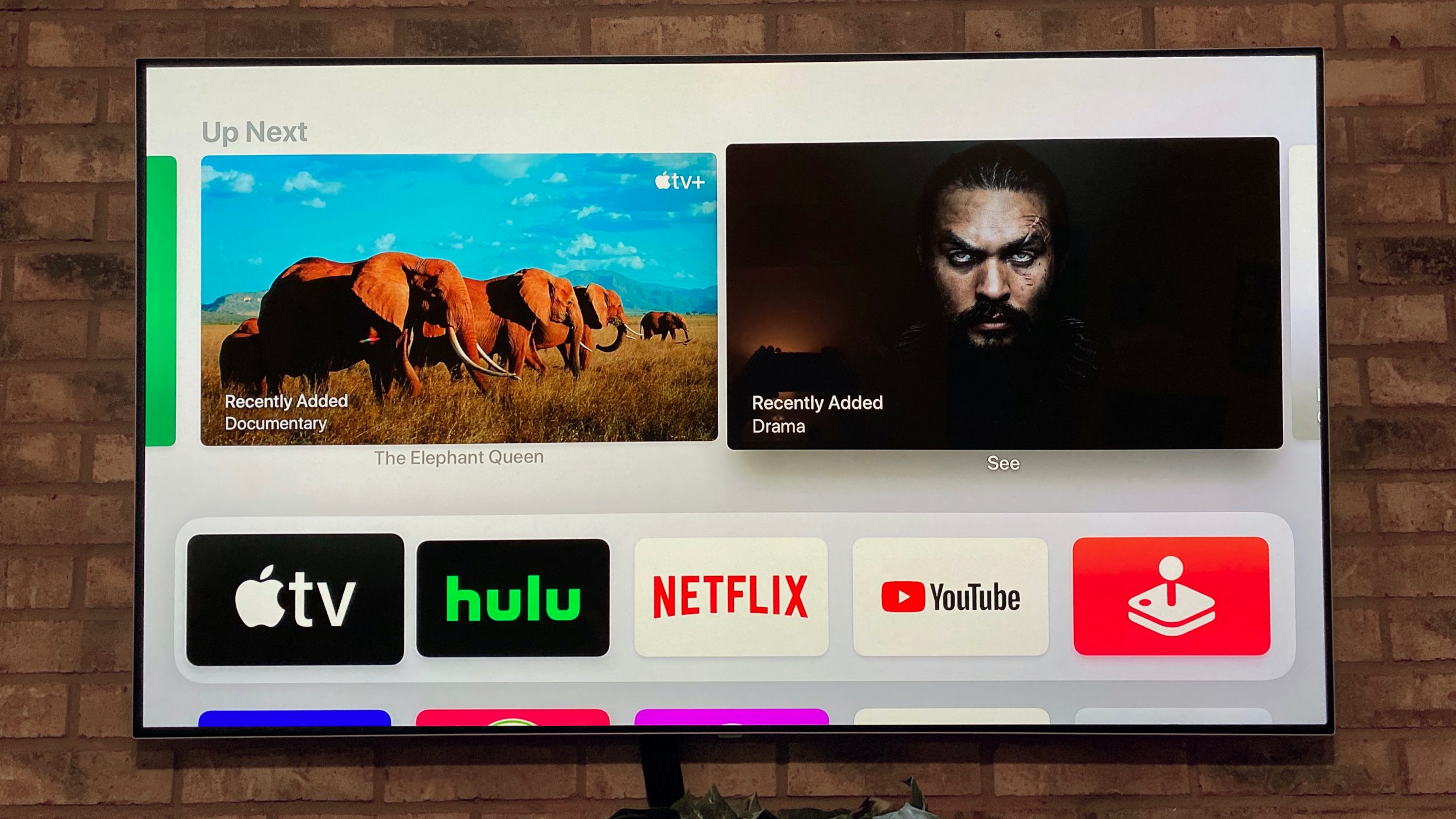
Put the Up Next queue directly on your Apple TV Home Screen
The top row of the Apple TV Home Screen is called the Top Shelf. Whatever apps you put in the first row can display content above, like interactive previews of the available content inside. Music will show trailers, Photos will show memories from your library, and third party apps like Plex support it as well.
Unlike the iPhone or iPad, this means that the placement of your icons has an effect on the behavior of the home screen. In general, you should put icons in the top row for apps that take advantage of…
https://9to5mac.com/2019/12/26/set-up-apple-tv-the-best-experience/